REMEMBER:

•  Add your name to your projects
•  Save Photoshop projects as PSD and JPG
•  Save Bryce projects as BR7 and [Save Image As] JPG
•  Save Sculptris projects as SC1 and JPG and export it as an OBJ.
•  Save Rhino projects as 3DM and JPG
•  Save Flash projects as FLA and go to FILE>PUBLISH SETTINGS and publish as SWF and JPG
•  Upload finished projects to your portfolio and/or your DeviantArt page
•  Keep checking your grade on PowerSchool
DOWNLOADS:
Download Bryce 5 Trial Version
Download Sweet Home 3D
Download Rhino 3D 5.0 Trial Version
Download Sculptris
Download Windows Movie Maker 2.6
Download Java JDK
Download Greenfoot
Showing posts with label Table. Show all posts

Thursday, April 10, 2014

Rhino: Create a Checker Board and Checkers

Today we will be creating a checker/chess board using a series of squares of alternating light/dark wood.  We will also be creating a border with a filleted edge.
In the first step, I turned on "snap" and created two rows of 8 blocks.  Then I changed the textures and alternated between light and dark.
In part 2, I copied the two rows and pasted them 4 times to create a basic checkerboard.
In part 3 I added a block that extended beyond the edges of the squares and lowered it just slightly so the squares stuck out of the surface.
In the final step, I filleted (rounded) the edges of the block (see above).

You can add texture, gloss, color, etc. and even lighting, background, etc.
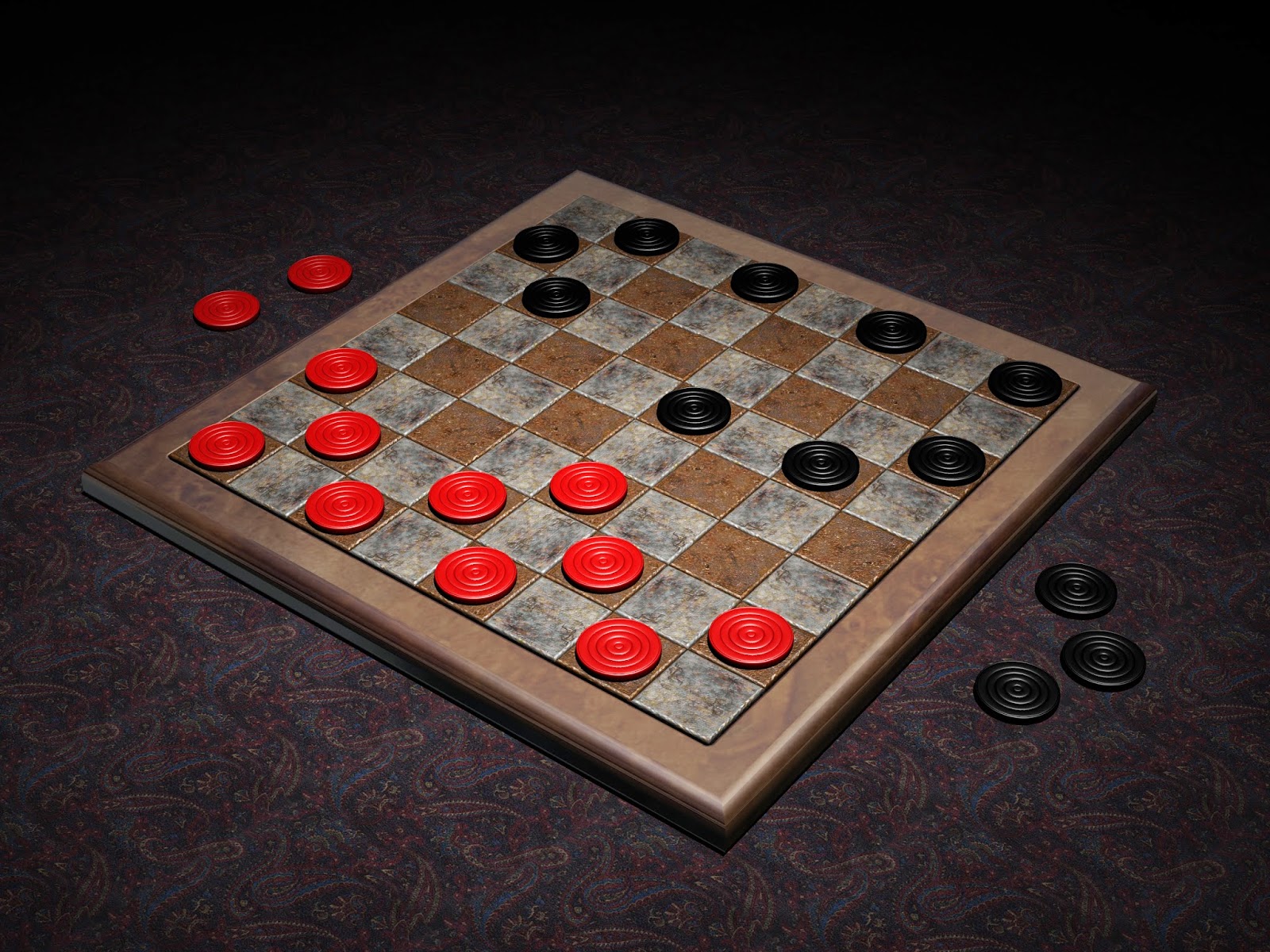
Next I would like you to add checkers.  You can either create a checker with the Cylinder tool, or with the Revolve command (as seen in the examples below).  Notice that there are 12 of each color and that they sit on the dark squares.
Below are various styles of checkerboards including some that have been made into tables.  Note the different colors, textures, materials, etc.  Checkerboards can be made in stone, metal, wood, fabric, etc.

Friday, March 28, 2014

Rhino: Basic Room (Floor & Walls)

Today we are going to create a basic "room".  Really, it's just a floor and two walls, but we will use it to display some of our Rhino creations.

The room pictured here has a floor (with a texture and a bumpmap), two walls (with texture), and a couple small trim pieces.  I also added some lighting effects.

You may want to create a few different "rooms" (some with wallpaper, some with wood floors, some with wood or painted trim, etc.  Again, these will be your "stage" to showcase some of your creations.

If you are adventurous, you can copy your table (from yesterday) and put it in the corner:
  1. Save your Room
  2. Open up your table file
  3. Select everything (drag a box around it or CTRL+A should do it)
  4. Copy it (CTRL+C)
  5. Open the Room file again
  6. Paste (CTRL+V)
  7. Scale your table (and anything that came with it) to fit nicely in the corner

Wednesday, March 26, 2014

Rhino: Wooden Inlaid Table

Today we are going to use some of the tools we have become familiar with (boolean difference, pipe, fillet edge, etc.) to create an "inlaid table with carved wooden legs".

The beginning is pretty basic -- create a flattened box that will be our table top.  We will then make some truncated cones for legs.  We will add another box to act as "inlay" in the top of our table, and we'll cut away pieces of that.  After we add some lighting and textures the effect should be complete.

Tuesday, March 25, 2014

Rhino: Table Legs & Top


Today we are doing a project very similar to the goblet or vase.  We are going to use the "Revolve" tool to turn some table legs.  Try a few different designs and some different textures.  Remember to add gloss (50 is really shiny) if you want them to appear varnished.

Notice that some are shorter and some are taller, but they have very similar designs.

If you look at the table design below, you can see turned wooden legs and it really helps to accent the table.

 
Process:
  1. Begin with "Small Objects - Inches"
  2. Select the front or side viewport and expand it
  3. Draw a profile of a table leg.  Standard table legs are approximately 29" tall
  4. Create your table leg using the Revolve method from the "Goblet" project.
1. Use the Curve tool to draw the profile of a table leg.
2. Select the curve (that you just drew)
3. Type "Revolve" and press Enter
4. Set the Axis in what will be the center of your table leg.
5. Type "0" and press Enter.
6. Type "360" and press Enter.

Rhino: Basic Table with Turned Legs

Today I would like you to make a table using the legs you built.
  • First, make sure the legs are long enough for a proper table.  Dining table legs are typically about 29" (inches) and coffee tables or end tables are much shorter.
  • Put a box on top of four table legs.  The box (table top) can be square or rectangular.  Make it at least a couple inches thick -- but remember that dining tables are typically 29-30" tall.
  • Try a FilletEdge command.
    • Type FilletEdge and press Enter
    • Set the fillet number to 1 at first.  
    • Select all four top edges of the table top.
    • Press Enter
    • If the table "blows up" (goes all crazy) do an Undo (CTRL+Z) and try again with a smaller number.
    • If the table isn't filleted (rounded) enough, do an Undo (CTRL+Z) and try again with a larger number.
  • Add textures, gloss, bumpmaps (if necessary)
  • Add a floor:
    • Scroll/Zoom out in your TOP viewport
    • Select the Box tool and make a box large enough to be a floor (maybe a couple inches thick)
    • Add textures, gloss, bumpmaps (if necessary)
  • Add some items (i.e. goblet, vase, plates, bowls, etc.) to the top of the table.
  • Add some spotlights at different angles to add interest to the scene

Monday, March 24, 2014

Rhino: Funky Coffee Table

Begin by opening the "Room" project you built yesterday.  Save this empty room as "Coffee Table" so you don't accidentally save over your empty room.
 Making the Table:
  1. Use the Curve tool to draw a shape for your "funky coffee table", connecting the last point with where you started drawing.  Strange designs like this were popular in the 50's-70's.
  2. Select the curve you just drew [if not already selected] and type "ExtrudeCrv" -- then press Enter.
  3. Either drag your mouse up/down in the front or side viewport to select the thickness of your table, or enter a number (in inches).  This will create a "band".
  4. Type "cap" and press Enter.  This will make the band appear solid.
  5. Drag your new table top up into your room scene about where you would want your table top to appear.
  6. I suggest doing a "FilletEdge" command next to round the top [and possibly the bottom] of the table edge.  
  7. Add a table leg using the Truncated Cone shape:
    1. Click in the top viewport where you would like to attach the leg.
    2. Drag out to set the width of the top of the leg.
    3. In the front or side viewport drag down to select the length of your table leg.
    4. Back to the top viewport, select the width of the bottom of the table leg.
    5. Drag the leg up (in the front or side viewports) so that it rests on the floor.
    6. Select the new table leg and type "Copy".
    7. When prompted, click in the center of the table leg (in the top viewport).
    8. Move the mouse in the top viewport and click where you want additional legs.  Do either 3 or 4 total legs.
  8. Adjust the table height (drag the table top) so that it rests on top of the table leg.
Finish Up:
  • Put some items on the table -- perhaps a coffee mug, a plate, a vase, etc.
  • Texture your table, legs, objects, etc.
  • Create a spotlight (or 2 or 3) on your table to highlight your new creations.

Note: If you go to the "Projects in Computers" folder on the "L: Drive" you will be able to view the 3D Graphics folder which has TONS of textures, bump maps, models, etc. Check them out.