REMEMBER:

•  Add your name to your projects
•  Save Photoshop projects as PSD and JPG
•  Save Bryce projects as BR7 and [Save Image As] JPG
•  Save Sculptris projects as SC1 and JPG and export it as an OBJ.
•  Save Rhino projects as 3DM and JPG
•  Save Flash projects as FLA and go to FILE>PUBLISH SETTINGS and publish as SWF and JPG
•  Upload finished projects to your portfolio and/or your DeviantArt page
•  Keep checking your grade on PowerSchool
DOWNLOADS:
Download Bryce 5 Trial Version
Download Sweet Home 3D
Download Rhino 3D 5.0 Trial Version
Download Sculptris
Download Windows Movie Maker 2.6
Download Java JDK
Download Greenfoot
Showing posts with label Face. Show all posts

Thursday, January 30, 2014

Drawing: Basic Face / Head Proportions

No, this isn't a drawing class -- but like the "Rule of Thirds" this technique can apply to many of our projects and designs.  Almost everybody who draws a face draws them out of proportion -- usually by placing the eyes too high on the head.

Please follow along with my presentation on the whiteboard so you have a better understanding of facial structures before you begin working on the head in Sculptris.
Notice that if you look at the human skull and divide it into a 4x4 grid, the eyes are directly in the center of the face.
By applying that same division to a human face, we can see that the line appears right on the top of the eyeball in most faces.
You may also notice that the width of the eyes usually equal the distance between the eyes -- and really, on the sides of the face as well.  This diagram shows 5 eye widths on the face.
Another interesting observation is that the center of the eye roughly lines up with the edges of the mouth, and the edges of the nose generally line up with the inside corners of the eye.

Notice in the finished drawing that the same line (now invisible) that ran across the top of the eyes also indicates where the ear joins the head.  Also notice that the eyebrows are not directly centered above the eyes.
You should keep these lines in mind if your figure is not looking directly at you.  Also remember that the head is really skull-shaped with "attachments" (nose, lips, hair, etc.).
While we are on the subject of proportions, this is an interesting general diagram showing human [male] body proportions.  Notice that "one head" is the unit of measure.  At the "second head" the line intersects the models chest -- at the 3rd, across the top of his naval... etc.
And this "sewing guideline" chart shows a few variations to the original.

Finally, here's a video demonstrating the facial proportions:

Tuesday, October 8, 2013

Photoshop: Project Frankenstein

Okay, this is one of the more bizarre PhotoShop projects I give.  :)  I call it "Project Frankenstein".

In this project you will gather pieces of faces from different people, and then composite them into a single image.  You can choose male or female, young or old.  You will take one persons head... anothers eyes... anothers mouth... and anothers nose.  Just so you know, it's almost impossible to do this project without making something "creepy." It's amazing how you can take [what you consider] the most beautiful eyes, the most beautiful mouth, the most beautiful nose, etc. and put them together... and it's hideous.
You can start with Google Images or use pictures of your family or friends.
Some tips...  
  • On the left side of Google Images click "Large" for size.
  • On the left side of Google Images click "Face".
  • Start with a large picture of a head as the base to put the pieces.
  • Select pictures where the hair isn't covering the face.
  • Pick faces with approximately the same skin color.
  • Pick faces with similar lighting (i.e. from the same side).
  • Drop your layer opacity to position the features and then return it to 100%.
  • Use your eraser tool with a feathered edge to blend the features in.
Note: The question I often get during this project is: "When will we ever be taking different pieces of peoples faces and sticking them together?"  The answer is, probably never -- but this project teaches the skills necessary to smoothly merge images, focus on shadows, adjust color saturation, etc.  It's not the project I want you to perfect, it's your technique.

I am displaying three different approaches to this project, including a full color, a sepia-tone with colorization on the eyes, and a grayscale with filters applied.

Good luck!  I'm looking forward to seeing your "creations".  :)


Some Student Creations:

Thursday, October 3, 2013

Photoshop: Caricature Using Liquify Tool

Today we will be using the Photoshop Liquify tool to create a Caricature of a famous person. A caricature is to make or give a comically or grotesquely exaggerated representation of someone or something. Generally you exaggerate something they are known for (Angelina Jolies lips, JLO's butt, Will Smiths ears, etc.).

Here are some examples of caricatures:

Your first task is to think of a celebrity that you know well.  Then locate a large picture of them for the project.  When you have the image in Photoshop and you have it as "cleaned up" as you want [i.e. removing background stuff], go to FILTER > LIQUIFY.

Here's my take on Charlie Sheen:
And my Mitt Romney:
And Obama:
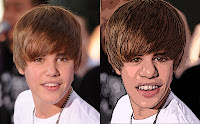
And, of course, Justin Bieber:
 
And Mily Cyrus:
Or how about Morgan Freeman?
Taylor Swift?