REMEMBER:

•  Add your name to your projects
•  Save Photoshop projects as PSD and JPG
•  Save Bryce projects as BR7 and [Save Image As] JPG
•  Save Sculptris projects as SC1 and JPG and export it as an OBJ.
•  Save Rhino projects as 3DM and JPG
•  Save Flash projects as FLA and go to FILE>PUBLISH SETTINGS and publish as SWF and JPG
•  Upload finished projects to your portfolio and/or your DeviantArt page
•  Keep checking your grade on PowerSchool
DOWNLOADS:
Download Bryce 5 Trial Version
Download Sweet Home 3D
Download Rhino 3D 5.0 Trial Version
Download Sculptris
Download Windows Movie Maker 2.6
Download Java JDK
Download Greenfoot
Showing posts with label Blogger. Show all posts

Thursday, November 14, 2013

Photoshop: Blogger Title Graphic / Header

Today we're beginning a "title graphic" or "header" for our Blogger page which include the title of your page and some graphic elements.  The following examples demonstrate the concept.

You might want to go into your blogger settings and check a few things before beginning:
  • What is the width of your blog?
  • What colors or styles will fit with your blog?
  • Will a graphic (or maybe your logo) fit on the header?
When finished, either change your header graphic in your portfolio or add the picture to your blog as a project.  Don't forget to give it a description and add keywords (e.g. Photoshop, Logo, Header, Knight).

Tuesday, October 22, 2013

Fine-Tune Your Blogger Page

I have a couple suggestions for fine-tuning your Blogger portfolio.  First of all, you want visitors to see more projects on the front page -- Internet surfers get bored easily and don't often like to click "Older Posts".

Go to your Design tab (in the top-right corner of your Blogger page) and do the following:
  1. Click Settings (on the left menu)
  2. Click Posts and comments (on the left menu that popped up after clicking Settings)
  3. Change the number of posts to something like 500.  That amount will not be displayed, but it will allow the maximum number of posts to show up.
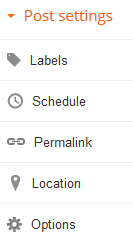
It's also important to add Labels to your posts.  When you have a post open (let's say you have created a Photoshop Collage of Modern Warfare 3) and you are getting ready to click "Publish".  Click on the "Labels" link on the right side of the screen to open the edit box:

Once you click the Labels link, it opens the box and lets you type in "keywords" that will be associated with this post.  The keywords are important because they:
  1. Allow your work to be identified more easily
  2. Allow Google (and other search engines) to better index and find your work.
  3. Allow you to create a "Labels" menu on your blog which users can click on to navigate to a particular section.
For example, on this page my labels might include Blogger, Edit, Optimize, Fine-Tune, Labels, Posts, and Settings.  Notice in the example (left) that a bunch of suggestions already appear -- those are labels I used previously.  As you start to type a word, it will pop up with a suggestion from that list.

Another example (using the collage project above) might consist of:  Photoshop, Collage, Modern, Warfare, MW3, Background, Wallpaper, Art, Project (etc.).  If someone on the Internet was doing a search for "Modern Warfare Wallpaper" they might find that post.

As we progress through the year, I will be adding more suggestions, but this should help to improve our portfolios.

Wednesday, September 4, 2013

Gmail and Blogger

Our assignment for today is to get set up with a Gmail account and a Blogger page.  We will be using our Blogger pages to keep links, post assignments, post responses, etc.  Eventually we will be creating a blog portfolio of our work from this year.
  • First of all, let's try Gmail:  Go to http://www.gmail.com/ and register for a new account.  
  • Next we can go to http://www.blogger.com/ and sign in using our Gmail username and password.  It doesn't really matter which theme you pick because we can change that and customize them at any time, but for now let's avoid the "Dynamic" themes.
  • Write down your Gmail username and password somewhere!  If you lose/forget it, you will have to start your portfolio over.
I will walk you through all of the steps in class to complete these, but there are instructions available here if you would like to complete this at a later time.

After completing the Gmail and Blogger setup, please email me at my work email (rgriffith@kvusd.org) and include the following:
  • Your first and last name.
  • Your grade level (9th, 10th, 11th, or 12th).
  • Your blog address (i.e. http://_______.blogspot.com).
  • Why you took this class / What you hope to get out of this class.
  • Career you plan to have when you "grow up".
  • Your hobbies (besides "chillin' with friends").
  • Something interesting about yourself.
Lastly, I would like you to include (in your email) your experience with the following:
  • Typing/Keyboarding
  • Photo Editing Software (i.e. Photoshop)
  • 3D Graphics (i.e. Bryce, Maya, Rhino)
  • Microsoft Office (i.e. Word, Excel, PowerPoint)
  • Programming (ActionScript, PHP, C#)
  • Web Design (i.e. HTML, Front Page, DreamWeaver)
  • Animation / Multimedia (i.e. Flash)
  • Video Editing (i.e. Windows Movie Maker, Adobe Premiere, iMovie)
  • Sound Editing / Mixing (i.e. Garage Band, Frooty Loops)
  • Blogging (i.e. Blogger, WordPress)
When you are finished with these assignments, please feel free to customize your blogs.