REMEMBER:

•  Add your name to your projects
•  Save Photoshop projects as PSD and JPG
•  Save Bryce projects as BR7 and [Save Image As] JPG
•  Save Sculptris projects as SC1 and JPG and export it as an OBJ.
•  Save Rhino projects as 3DM and JPG
•  Save Flash projects as FLA and go to FILE>PUBLISH SETTINGS and publish as SWF and JPG
•  Upload finished projects to your portfolio and/or your DeviantArt page
•  Keep checking your grade on PowerSchool
DOWNLOADS:
Download Bryce 5 Trial Version
Download Sweet Home 3D
Download Rhino 3D 5.0 Trial Version
Download Sculptris
Download Windows Movie Maker 2.6
Download Java JDK
Download Greenfoot
Showing posts with label Project. Show all posts

Monday, February 24, 2014

Bryce: A Winter / Snowman Scene

Today I would like you to create a scene in Bryce set in Winter and featuring a snowman and/or a snow globe.
  • Change the texture of the Plane (it starts out as a flat gray)
  • Adjust the sky / change the texture
  • Add some objects (trees, rocks, snow, or whatever)
When finished, make sure to:
  1. Save your document (FILE > SAVE AS > whatever.BR7)
  2. FULLY render your scene
  3. Save your image (FILE > SAVE IMAGE AS > whatever.JPG)
  4. Upload your project to your portfolio.
Be creative and have fun!

Wednesday, October 23, 2013

Photoshop: Public Service Poster

Click to View Full Size
Tomorrow we are going to begin putting together a "Public Service Poster".  These should be attention-getting, make a strong impression, and be school appropriate.  Take this project seriously -- because I do.  It's okay to use humor to get your point across, but the purpose of a public service poster is to inform.

Take this period to research an issue, get some facts, locate some good images, and decide on a layout.  You have today to research and tomorrow and Friday to work on this project.

I will be giving extra credit to projects that I believe are good enough to print and hang up and I WILL be grading these seriously. 

Project Specifics:
  • 8.5 Inches x 11 Inches (you choose orientation)
  • 150 DPI Resolution
You can choose from these options:

1. Anti-Smoking / Tobacco Campaign
Create a poster to discourage someone from using/selling tobacco products.  Include a fact (or facts) -- Here are some to get you started:  http://www.tobaccofreeca.com/resources/ 
2. Above the Influence / Anti Drug Campaign
Create a poster to discourage someone from using drugs.  Include facts about which drug(s) you are dissuading people from using.  For example, did you know that more teens are in treatment facilities for "marijuana dependency" than all other illicit drugs combined?  Or that young people who smoke marijuana are more than twice as likely to have depression later in life?  Here are some more facts to get you started: http://www.abovetheinfluence.com/facts/drugfacts 
3. Domestic Violence Prevention
Create a poster to let people know how/where to get help if they are the victims of domestic violence, dating violence, etc.  Try to find local resources (i.e. phone numbers).  Use some facts about the issue as well: http://domesticviolencestatistics.org/domestic-violence-statistics/
4. Texting While Driving
Create a poster letting people know about the dangers of driving while texting.  While it's a relatively new problem, a lot is being said about it.  Remember to include facts.  For example, you are 4 times as likely to cause an accident while driving after drinking... but 8 times as likely to drive while texting.  Here is a place to start: http://www.infographicsshowcase.com/driving-while-texting-infographic/ 
Here are some examples of posters:


Thursday, October 17, 2013

3D Anaglyph Photography

Today we are going to be learning some simple "3D Anaglyph Photography" techniques.  To get a "3D" photograph you need to take a picture of a scene/object and then move the camera approximately 3 inches to the right and take another picture of the scene/object.  This simulates the way our eyes work (binocular vision) so each picture represents the view from one eye.  Then we will use the "Channels" in Photoshop to show both "eyes" in the same picture which is viewable with 3D glasses [red/blue or red/cyan].

Here are some 3D examples:


More recent uses of the 3D anaglyph process can be seen in NASA's Mars Rover program.  The rovers are equipped with binocular cameras -- two cameras mounted about the same distance apart as two human eyes -- and those images are processed to produce 3D anaglyph images and/or movies.
Here's an example of an anaglyph movie produced with this process:

If you have not taken your own set(s) of pictures (left and right), use some of these sample pictures to get you started (click them to view full-size then save to your computer and open in Photoshop):


Basic Instructions:
  • Open both images (left and right) in Photoshop
  • With your "Right" image open, Select > All (CTRL+A)
  • Do a Copy (CTRL+C)
  • Open/Select your "Left" image 
  • Select your "Channels" tab
  • Select the "Green" Channel
  • Hold Shift and click the "Blue" Channel
  • Paste (CTRL+V)
  • Select the "Red" Channel
  • Show the RGB Channel (click the "eyeball" -- don't actually click the layer)
  • Drag the image so your "focal point" is clear
  • Image > Crop
  • With 3D glasses on, nudge (arrows) your layer up, down, left or right to bring out the effect
This is an older tutorial video, but it still works:

Tuesday, October 8, 2013

Photoshop: Project Frankenstein

Okay, this is one of the more bizarre PhotoShop projects I give.  :)  I call it "Project Frankenstein".

In this project you will gather pieces of faces from different people, and then composite them into a single image.  You can choose male or female, young or old.  You will take one persons head... anothers eyes... anothers mouth... and anothers nose.  Just so you know, it's almost impossible to do this project without making something "creepy." It's amazing how you can take [what you consider] the most beautiful eyes, the most beautiful mouth, the most beautiful nose, etc. and put them together... and it's hideous.
You can start with Google Images or use pictures of your family or friends.
Some tips...  
  • On the left side of Google Images click "Large" for size.
  • On the left side of Google Images click "Face".
  • Start with a large picture of a head as the base to put the pieces.
  • Select pictures where the hair isn't covering the face.
  • Pick faces with approximately the same skin color.
  • Pick faces with similar lighting (i.e. from the same side).
  • Drop your layer opacity to position the features and then return it to 100%.
  • Use your eraser tool with a feathered edge to blend the features in.
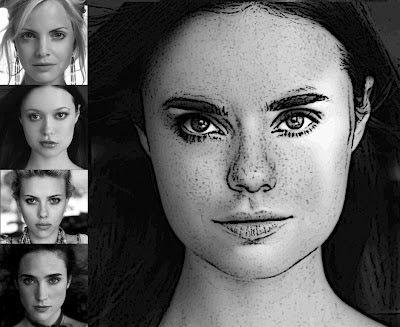
Note: The question I often get during this project is: "When will we ever be taking different pieces of peoples faces and sticking them together?"  The answer is, probably never -- but this project teaches the skills necessary to smoothly merge images, focus on shadows, adjust color saturation, etc.  It's not the project I want you to perfect, it's your technique.

I am displaying three different approaches to this project, including a full color, a sepia-tone with colorization on the eyes, and a grayscale with filters applied.

Good luck!  I'm looking forward to seeing your "creations".  :)


Some Student Creations: